v1.8 - vMix support, SuperSource art, and a smoother layouts list
Released 30th August, 2026.
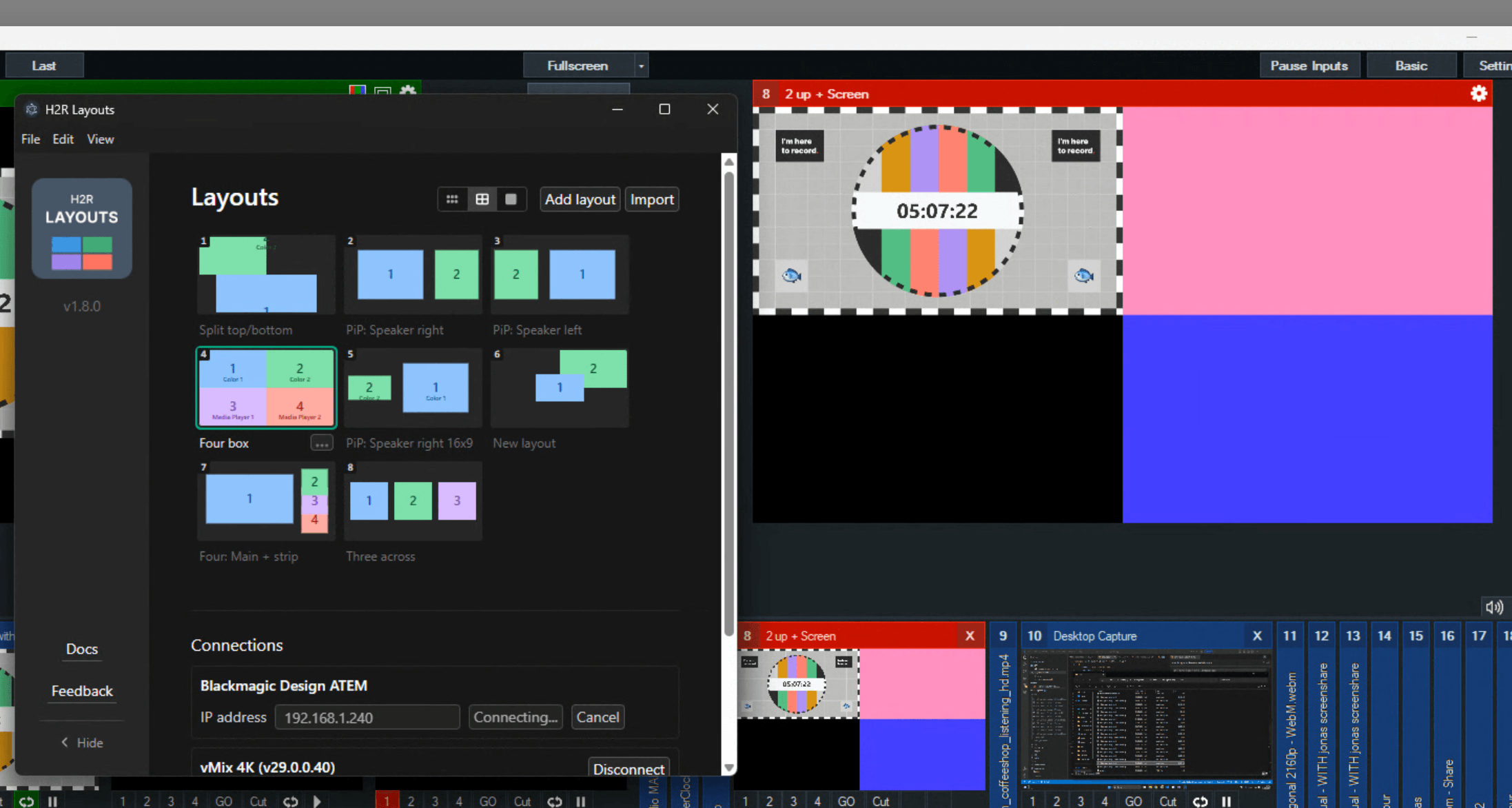
Until now H2R Layouts (the app) has been an ATEM tool. v1.8 changes that. You can connect the app to a vMix instance and recall your layouts straight onto a MultiView or VirtualSet input, with the same one-click thumbnails and keyboard shortcuts you already use for SuperSource.
Alongside that, this release adds per-layout SuperSource art settings, an on-air guard for vMix, and a handful of fixes to the layouts list.
Here’s everything that’s new.
vMix support
The Connections panel now has a vMix section sitting alongside ATEM. Enter the IP address of the machine running vMix and a port (8088 by default, which is the vMix web controller’s standard port) and hit connect. The app reads vMix’s state over its HTTP Web API, so all you need is the web controller switched on.
Once connected you’ll see the vMix edition and version, plus how many inputs it found.
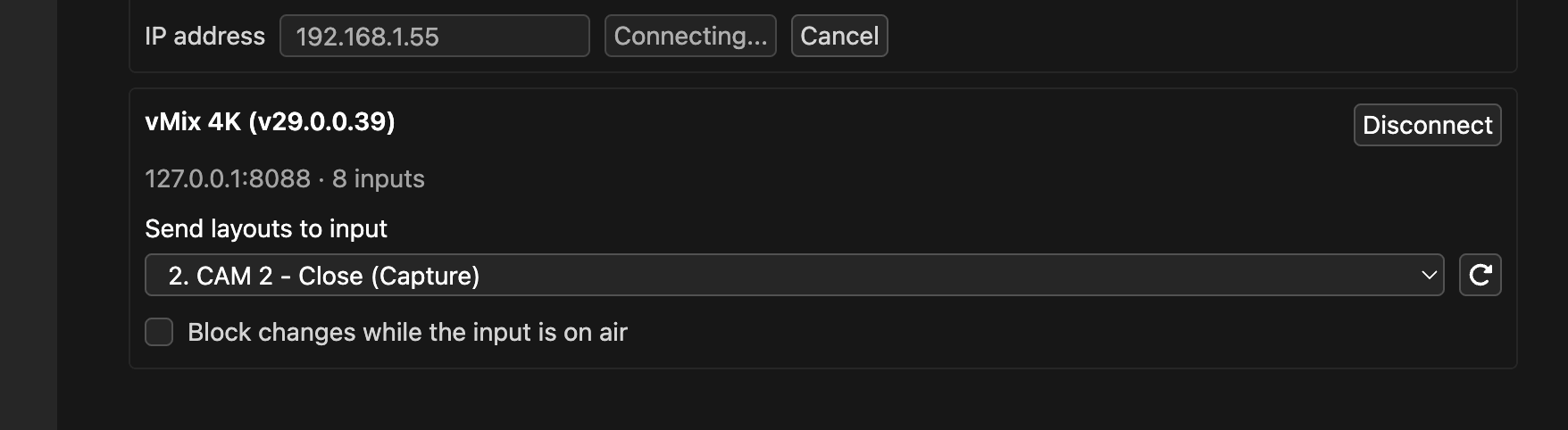
Choose which input your layouts control
vMix doesn’t have a single SuperSource the way an ATEM does. Instead, layouts target one input, normally a MultiView or a VirtualSet, and the boxes in your layout map onto that input’s layers in order: box 1 to Layer 1, box 2 to Layer 2, and so on.
Pick the input from the dropdown in the vMix panel. There’s a refresh button next to it, because the vMix Web API has no way of telling the app when you add or rename an input. If you’ve just built a new MultiView, hit refresh and it’ll appear.
Your boxes’ position, size, and cropping all translate across. A disabled box hides its layer rather than leaving whatever the last layout put there on screen.
ATEM and vMix, together or apart
The two connections are completely independent. You can run vMix on its own with no ATEM connected at all, run an ATEM on its own exactly as before, or connect both and have every layout recall fire at the same time on each.
Keyboard shortcuts work with either device connected, and layout thumbnails stay clickable as long as at least one of the two is live.
Block changes while the input is on air
There’s an optional guard in the vMix panel: “Block changes while the input is on air”.

Switch it on and the app checks vMix right before sending, and refuses to move anything if the target input is currently on program output. It catches the nested case too, so if your MultiView is sitting on a layer of whatever is live, it’s still protected. When a recall gets blocked you’ll get a short notice in the panel telling you why, rather than a silent no-op.
It’s off by default, because plenty of people want to rearrange a layout live on air. Turn it on if you’d rather not.
Control it from Companion and the WebSocket API
The app’s WebSocket API has gained three new commands to match:
connections/vmix/input(params:{number}) sets which vMix input layouts are sent to.connections/vmix/protect-on-air/enableturns the on-air guard on.connections/vmix/protect-on-air/disableturns it off.
Per-layout SuperSource art
Layouts can now carry their own SuperSource art settings, which get applied on recall alongside the boxes.
Open the layout editor and you’ll see an “Art” button next to the box buttons under the canvas. Select it and the properties panel switches over to the art controls: pick a fill source, choose Background or Foreground, and for Foreground set the cut (key) source, pre-multiplied key, clip, gain, and invert.
Because the setting lives on the layout, you can have one layout that drops the art behind your boxes and another that lays a foreground frame over the top, and switching between them handles the art for you. Any layout with art configured gets a small image marker on its thumbnail so you can spot it at a glance.
Layouts list fixes
A few things that were bugging us while dragging layouts around:
- The drag preview now shows the layout’s thumbnail, rather than the whole card with its name and menu.
- The layout being dragged fades out so it’s obvious what you’re moving, and the drop indicator no longer draws over it.
- Dropping a layout no longer fires an accidental recall from the click that followed the drag.
Other changes
- The ATEM source list now runs to 40 inputs, up from 20, for people on larger frames.
- Update to latest version of Electron.
Wrapping up
v1.8 is free if you already own the app. Head to the download page to grab the latest build, or check the update page if you’ve already purchased.
As always, if you hit anything weird or want to ask for a feature, get in touch.